Abstract
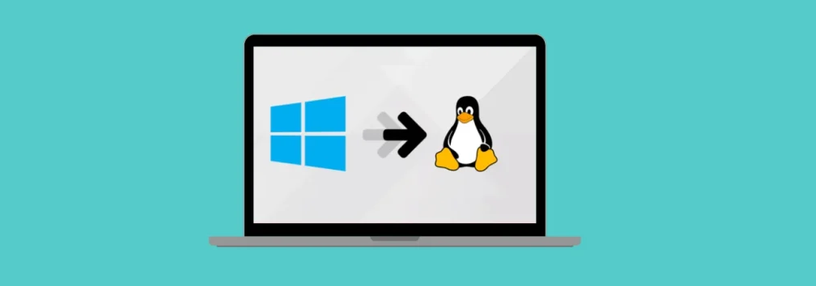
The operating system you use affects you nearly every single day. Switching from Windows to Linux is not only worthwhile but, in many cases, also valuable. My experience came from continual frustrations with Windows 11 performance. I have tried five different distros so far and like two in particular: Pop!_OS and Manjaro KDE Plasma. The main Linux advantages are open-source software, much faster application start-up times, and the general feeling that computers run more efficiently on Linux. There are difficulties, such as Bluetooth connectivity, touchscreen compatibility, and the learning curve of terminal-based workflows. Recommendations include beginning with older hardware, being patient with hardware incompatibility, using the terminal more, and looking for MS Office alternatives. A summary table of Linux advantages and disadvantages is included.
“These are tools. I mean, modern dentistry is great. But your dentist doesn’t insist you worship him.” Paulina Borsook
Frustration & Move
Operating systems, like plumbing, electricity, and other infrastructure, just need to run efficiently in the background. When you flip a light switch, a light turns on; when you boot your computer, it starts up quickly, and the OS runs quietly in the background. Like other infrastructure, the operating system your computer uses affects you nearly every day.
About two years ago, I became very frustrated with Windows 11 on a Dell XPS laptop I used for work. It got particularly bad when Windows Defender ran in the middle of the morning, rendering my mouse and some programs unusable and slowing the laptop to the point of being unusable. I tried everything from rescheduling the scans to even turning Defender off, but it kept running at inopportune moments, like it had a mind of its own. Even so, Defender was only one issue, and I started noticing that Windows just seemed a bit slow, tired, and old.
I had been thinking about switching my main work PC to Linux. One particularly bad morning, Defender was very bad; I installed Ubuntu on an older laptop that wasn’t running particularly well either. The new install worked flawlessly and brought new life back to the laptop. That experience immediately convinced me to purchase a new pc and install a fresh Linux OS on it.

Killing Windows
The new PC arrived, a shiny (and tiny) Geekom A8 with AMD Ryzen 7. It came with Windows 11 installed. I opted to install Manjaro KDE Plasma on a colleague’s recommendation. It was extremely satisfying to delete Windows during the process. I can’t say the install was hiccup-free; the PC/Manjaro wouldn’t recognize wireless keyboards, so I had to plug one in to finish setup, but once I got past those obstacles, it was up and running.
I immediately noticed how zippy it was, due in part to the new, unencumbered hardware, but most everything just ran smoothly. Applications that used to take minutes or more loaded in seconds; software installed from the terminal that had issues in Windows installed and ran flawlessly; and little things, such as window sizing or the ease of individual tweaks in the settings, were easy and intuitive. The community support, forum, and Manjaro wiki were other nice touches.
Hardware:OS
Here is the rundown of hardware and software I’m currently running:
Pop!_OS running on a Microsoft Surface Laptop.
Raspberry Pi 5 running as a lab for cloud software.
Geekom A8 running Manjaro Plasma KDE.
Dell Optiplex 7020 running Debian server.
An ancient Lenovo laptop that creaked along was revived by Pop!_OS and is now testing Mainstream OS.
Dell XPS with Windows 11.
Of the distros I’ve tried, I’ve had the fewest issues with Pop!_OS, although I really like many Manjaro features. The Mainstream OS is pretty cool, but I’ve only used it for a couple of days. The laptop it is running on has 2 mb of RAM and very little storage. I’ve also tried a demo version of antiX on the same machine. It loaded rapidly, and it is minimalist. I didn’t notice that it was particularly faster, other than the boot.
Frustrations
The Bluetooth wireless hardware issue kept plaguing me, so I bought a Linux-specific keyboard. Aside: Sometimes Bluetooth connection issues feel like giving a PowerPoint presentation in the 90s, when connecting to a projector was always a challenge. Once swapped out, the new keyboard worked well. These issues weren’t ideal, but they were leftover hardware issues from using Windows.
The laptop where I initially installed Ubuntu is a Microsoft Surface laptop (I’m aware of the irony). After trying Ubuntu and Mint, I switched to Pop!_OS, a great operating system built by the folks at System76. Pop!_OS, which is impossible to type out quickly, has useful shortcuts, runs smoothly, and includes cool features like auto-tiling. On the laptop, I still had some software issues, such as disconnecting from Wi-Fi when I closed but didn’t shut down and losing the touchscreen. I’ve tried various fixes, but none have worked so far. The touchscreen reinstall even caused a panicky black screen, and I had to navigate dark, archaic, DOS-like universes to fix it. So that was a bit too experimental for me!
Installation
Installing Linux is straightforward (see the Installing Pop!_OS dropdown below). Aside from creating a bootable USB, a key part of the installation is diving into your hardware’s BIOS, which can be frustrating to access and feels like a trip back to the 20th century. See Table 1 to find the BIOS key and boot menu key for your hardware. Don’t give up after one try; it often takes multiple attempts and repeating the key sequence while booting.
Installing Pop!_OS
Here are the steps to replace Windows and install Pop!_OS from System76. There are hundreds of YouTube videos on how to install Linux, so if you get stuck, check them out.
Download Pop!_OS ISO
Go to the Pop!_OS installation. The instructions are great and to the point.
Download the ISO file
Download Rufus
Go to the Rufus website: https://rufus.ie. Note that Rufus only works in Windows. If you’re installing in Linux, try Balena Etcher instead.
Download the Windows version
Prepare USB Drive
Plug in a USB flash drive
Open Rufus and select your USB drive
Select the Pop!_OS ISO file
Click “Start” to flash the ISO to the USB
Wait for the process to complete
Safely eject the USB
Boot from USB
Open the BIOS menu for your machine (see Table 1). Disable secure boot under security, and under boot or boot sequence, change the order so that it boots from USB first
Shut down the target PC
Plug in the USB drive
Power on and press the boot menu key (see Table 1)
Select the USB drive with the ISO file on it from the boot menu
Press Enter to boot in normal mode
Install Pop!_OS
Select your language → Click “Clean Install”
Select the internal drive (not the USB)
Set up user account (name, username, password)
Enable full disk encryption if desired (recommended)
Click “Encrypt” → Set encryption password
Wait for installation to complete
Remove the USB from the PC/laptop
Click “Restart Device”
Initial Setup
Enter decryption password (if encryption enabled)
Log in with your password
Complete the Cosmic Desktop setup wizard:
Accessibility options (skip if not needed)
Connect to Wi-Fi
Select language and keyboard layout
Set time zone
Choose color scheme and panel layout
Click “Finish”
Install your software
Table 1:Quick reference guide for BIOS setup access and boot menu keys.
| Brand | BIOS | Boot Menu |
|---|---|---|
| Acer | F2 | F12 |
| ASUS | F2 | Esc |
| Dell | F2 | F12 |
| HP | F2 | F12 |
| Lenovo | F1 or F2 | F12 |
| Microsoft | Vol Up + Power | Vol Down + Power |
| Toshiba | F2 | F12 |
Linux Server
Another useful approach for your home office or lab is creating a Linux server. This is especially useful for creating a cloud-based file system, developing a geospatial data server using GeoLens or QGIS, or creating a virtual machine/container server. Debian Server is well known for this role because of its stability and ease of installation. See the “Running a Headless Server” pulldown below to get started.
Run a Linux Headless Server
Linux is the perfect OS for running a headless server on your local network, especially Debian Server. It’s easy to install on an old pc or laptop (or run on a used PC), runs efficiently, and you can run servers in Docker containers or on their own. A great example is CasaOS, which you can access in any browser using the server’s IP address or localhost, and it lets you run cloud file backups and install containerized apps. Another is Nextcloud, which also includes a calendar, videoconferencing, and other useful tools. Here are the installation steps, along with a bonus CasaOS installation to get you started. This is adapted from the To Thrifinity & Beyond youtube video:
Gather Required Items
Old or new computer
USB stick with Debian 13 image. Go to the Debian site to download
Monitor, keyboard, and mouse (temporarily)
Configure BIOS
Enter BIOS (F2, F10, Escape. Look up the BIOS sequence to enter when booting for your specific machine)
Disable Secure Boot
Set boot order to start with USB
Launch Installer
Boot from USB drive
Select “Graphical Install”
Set Up Basic Configuration
Select language and region
Name your server
Set network name (e.g., “local”)
Create a username and password
Select time zone
Partition Disk
Choose “Full Disk” installation
Select internal hard drive (not USB)
Confirm and continue
Configure Package Manager
Leave proxy empty
Click “No” on data sharing
Select Software
Uncheck everything except:
SSH server
Standard system utilities
Click “Continue”
Reboot and Log In
Remove USB before reboot
Log in with your username and password
Go Headless
Unplug monitor, keyboard, and mouse
SSH into server from another computer: ssh your_username@192.168.1.XXX (enter actual IP address after the @)
Enter your password when prompted
Update System
Run:
sudo apt update && sudo apt upgrade -yin the terminal
Install CasaOS
Run:
curl -fsSL https://get.casaos.io | sudo bashin the terminal
Access the CasaOS Dashboard
Open a browser and navigate to: http://
192 .168 .1 .XXX Set username and password
Install apps like Plex, Minecraft server, and others
Key Software
Software recommendations to help you make the leap include the following:
OnlyOffice. A nice replacement for MS Office that runs the same files with Office extensions. Some limited functionality is noticeable, such as no Power Query in Excel. I really like the tab-based approach to files; for example, you can open OnlyOffice and have a spreadsheet and a doc in different tabs.
QGIS. If you do any geospatial analysis, QGIS works very well in Linux.
Konsole. Konsole is a terminal platform that comes with Manjaro, but not Debian or Ubuntu. Manjaro sets it up nicely, including visuals for location and environment and auto-completion.
Kate. This is a really great text editor that can also be used as an IDE.
VS Code. Visual Studio Code is the IDE that everyone uses. Some people recommend VSCodium, which is the same open-source editor as VS Code but without telemetry/tracking.

Pros/cons
The pluses and deltas of using Linux across different machines can vary widely, but there are some commonalities despite them Table 2. You’ll notice how fast a clean install is, especially for software that takes much longer to open in Windows. You’ll likely find that working in Linux at first is like living in a foreign country. You’ll immediately like some things and miss others. You’re OS bilingual now, so you can always return to Windows for the things you like there.
Table 2:Summary of pros and cons for using the Linux OS instead of Windows. Note that living in a foreign country is both a pro and a con; you’ll always like and dislike things anywhere.
| PROS | CONS |
|---|---|
| 🟢 Living in a foreign country | 🟡 Living in a foreign country |
| 🟢 New and innovative solutions like auto-tiling | 🟡 Hardware compatibility |
| 🟢 Open source | 🟡 Constant updates |
| 🟢 Machines run well and apps are fast | 🟡 Bluetooth, touchscreen issues |
| 🟢 Learning curve | 🟡 Learning curve |
Recommendations
Try it on an old laptop. Try Linux out first on an old laptop or PC to see what OS you like. Linux distributions (called distros by those in the know) such as Mint, Debian, Ubuntu, Fedora, and Pop!_OS are great for beginners or anyone who wants a system similar to Mac or Windows.
Consider hardware compatibility. Be aware that some hardware may not be compatible, and have a backup when something doesn’t work. Better yet, install Linux on a laptop where most things, like the screen and keyboard, are built in, and there’s less likelihood of incompatibility, especially for wireless Bluetooth-connected hardware.
Troubleshoot. Don’t be deterred when the install doesn’t fully work, or something fails. There are loads of communities online to help you out or to research solutions. Remember, switching over at first can be experimental, especially if you keep a Windows backup, just in case!
Embrace the terminal. You might feel uneasy using the terminal at first, but one of the best early Linux pieces of advice I received was to try to use the terminal every day, even for simple things like viewing or copying files. Using it will soon become second nature, and in a few months you won’t believe it when you open the terminal to find files or complete tasks. Again, lots of information online with helpful common commands for Linux users; articles are easy to find.
Keep a backup Windows PC. I did this because ArcGIS Pro isn’t available in Linux and I use it for geospatial analysis. Alternatives like QGIS and now GeoLibre are reducing my use of Arc, but it’s still useful for certain types of analyses.
Use OnlyOffice. You might miss some Microsoft products like Word, Excel, and PowerPoint. OnlyOffice is worth installing because it can read and open any files created in MS Office and does a lot of what Office can do, with a similar user interface.
Experiment. Check out new apps and experiment; try tiling, a new workflow, or a different file structure. Much of the innovation in software packages is happening on Linux. Trying them out is cool and may remind you of how fun it was when you first started using computers. Plus, breaking and fixing issues will make you more proficient with running your pc in the future.
Resources
The Linux community generally is awesome and very helpful, so there are a lot of resources out there. So much that it can be hard to wade through. Here are a couple of resources you may find useful:
Introduction to Linux. A comprehensive course from freeCodeCamp.org on using Linux for beginners. Six hours of nearly everything you need to know.
Manjaro Linux Tutorials. Set of excellent tutorials from Qiusheng Wu on installing Manjaro on your computer. One item that stood out to me was using shell scripts to automate software installation during setup. This makes switching distros or reinstalling quick and avoids downloading each software package you use.
Download Ubuntu & Create Bootable USB. This video is simple and to the point about creating a bootable USB drive to install Linux.
If you need some help and advice on making the move, please reach out: info@3point.xyz